Office 2024 Professional Plus
About Office 2024 Professional Plus
Download the installation package for your preferred language, then follow the steps.
Installation files
Select the language and download:
Installation
-
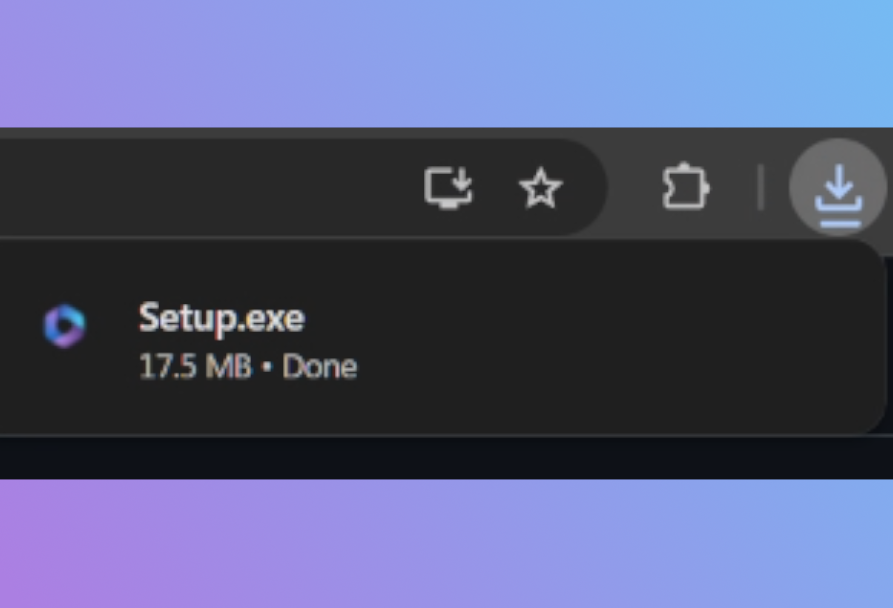
Download the file for your language.
-
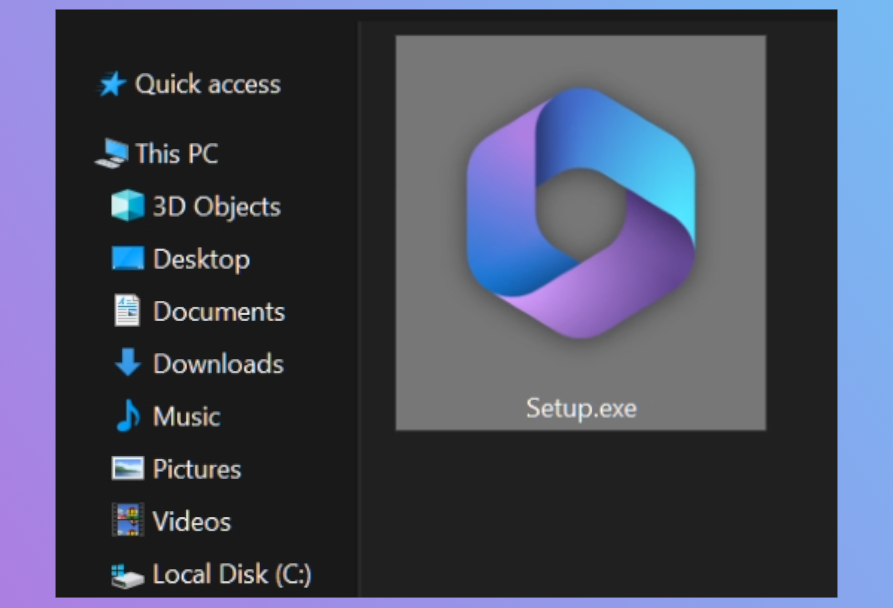
Double-click the file.
-
If prompted for a new location, select a location with enough space and press Install.
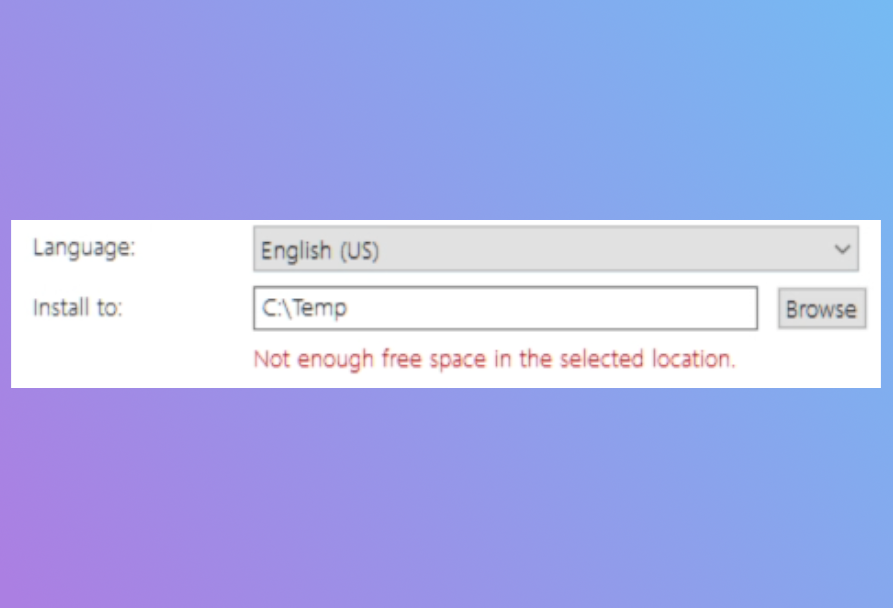
-
Wait for the installation to finish.
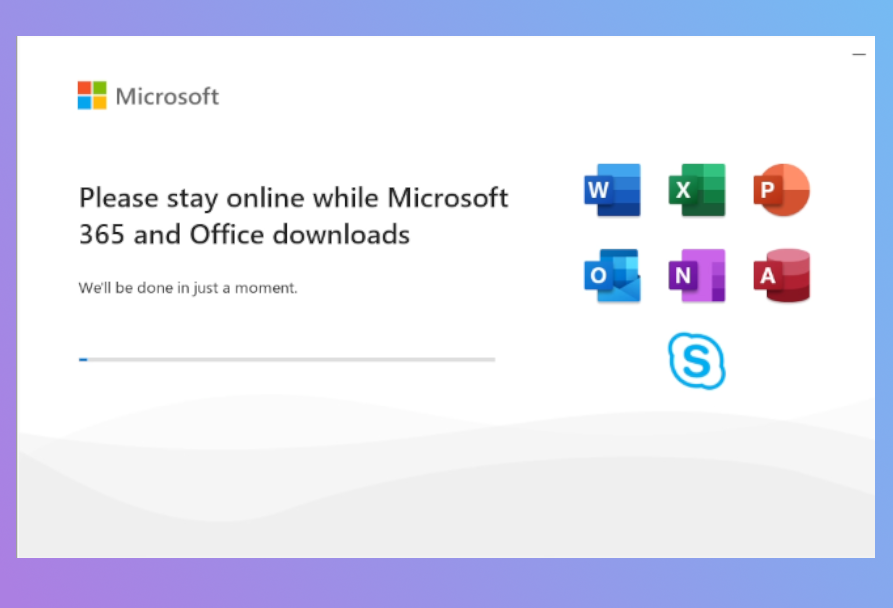
-
Open any Office application (PowerPoint, Word, Excel, etc.).
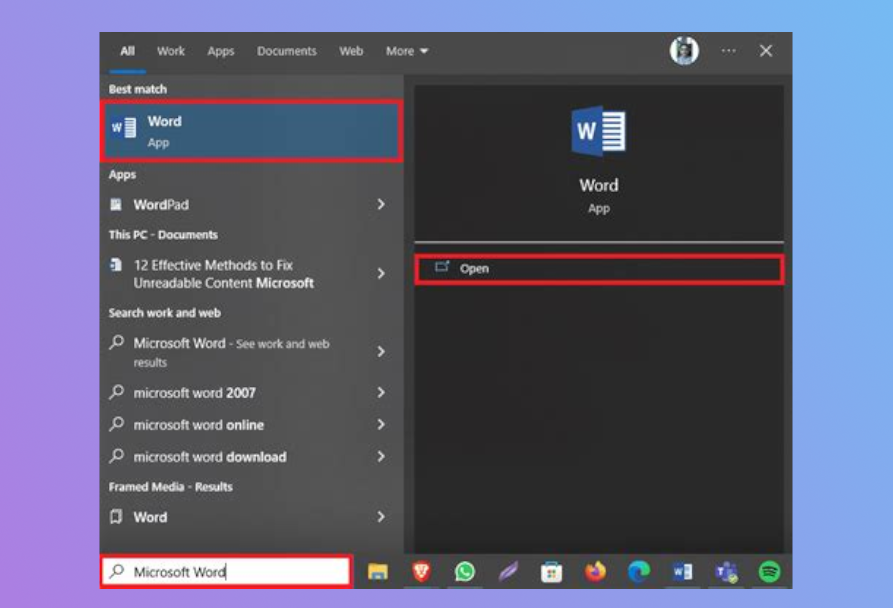
-
When prompted, enter the product key, press Activate Office, and restart the open program.
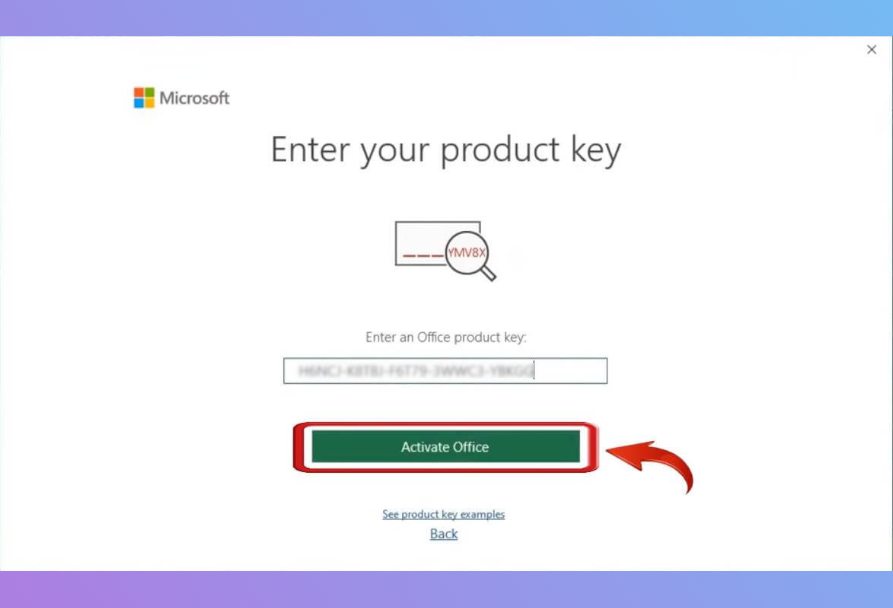
-
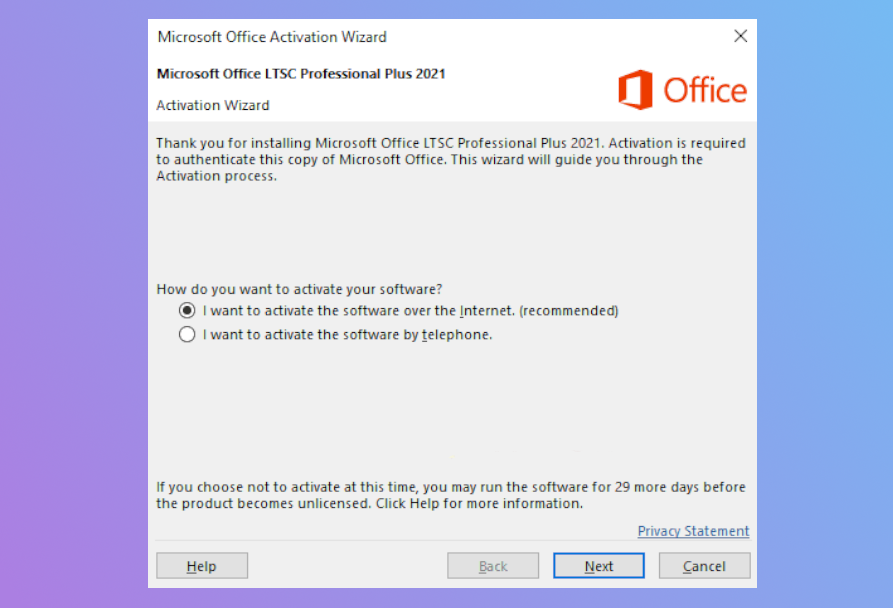
An activation window will appear, select Online Activation and press Next.
-
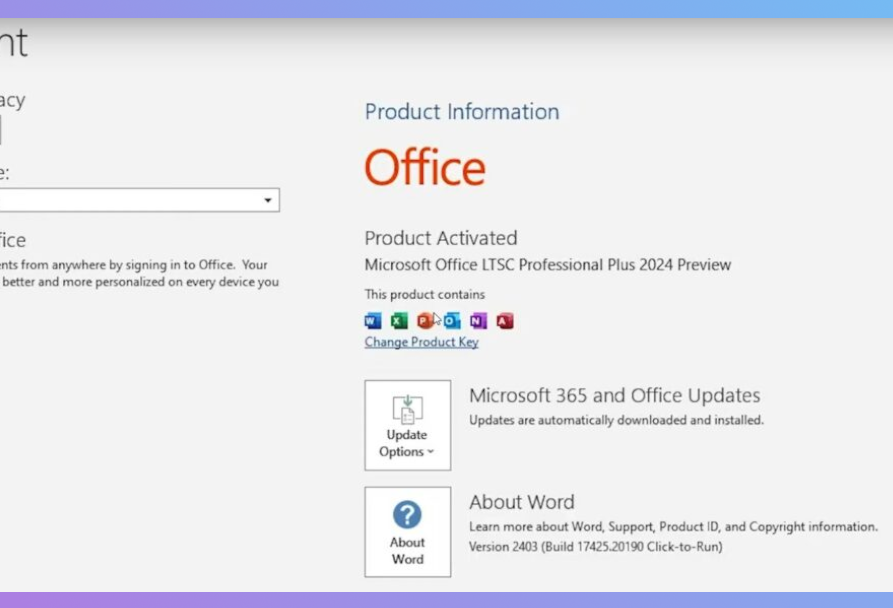
Now Office is activated.
Phone activation
-
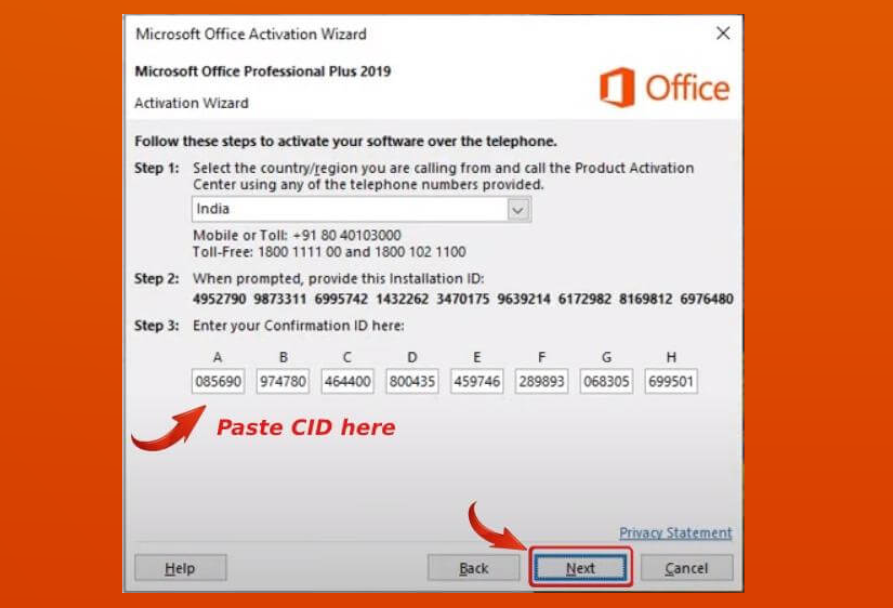
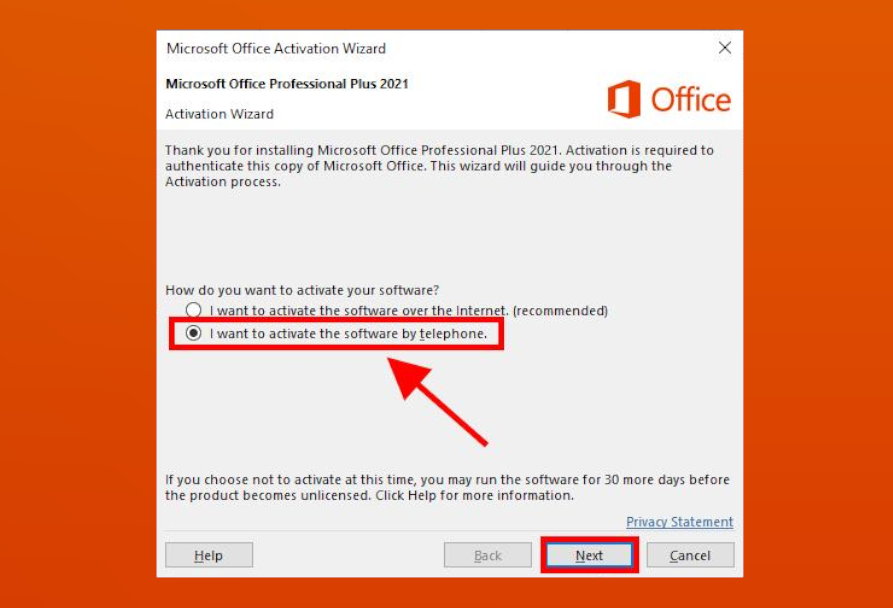
If online activation does not work, choose 'Activate by phone' and select your country of origin.
-
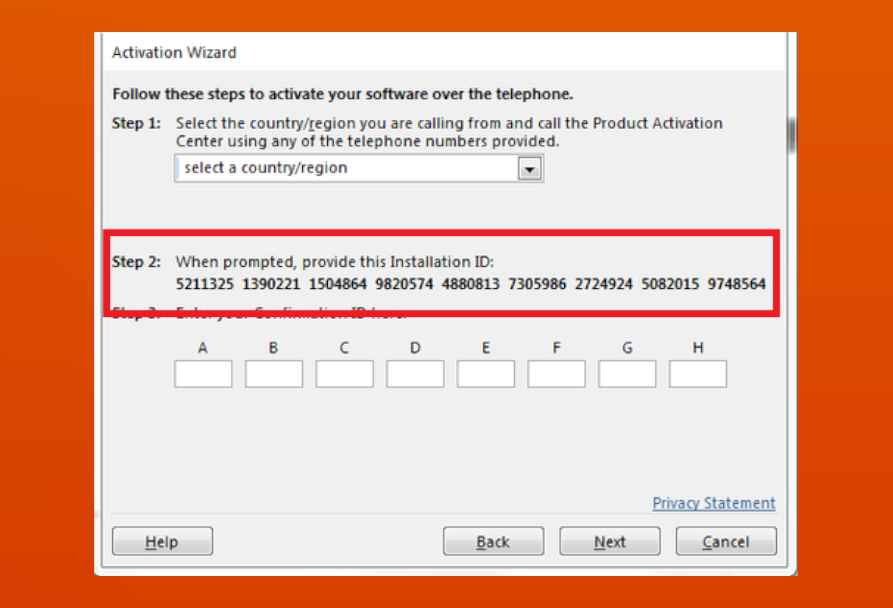
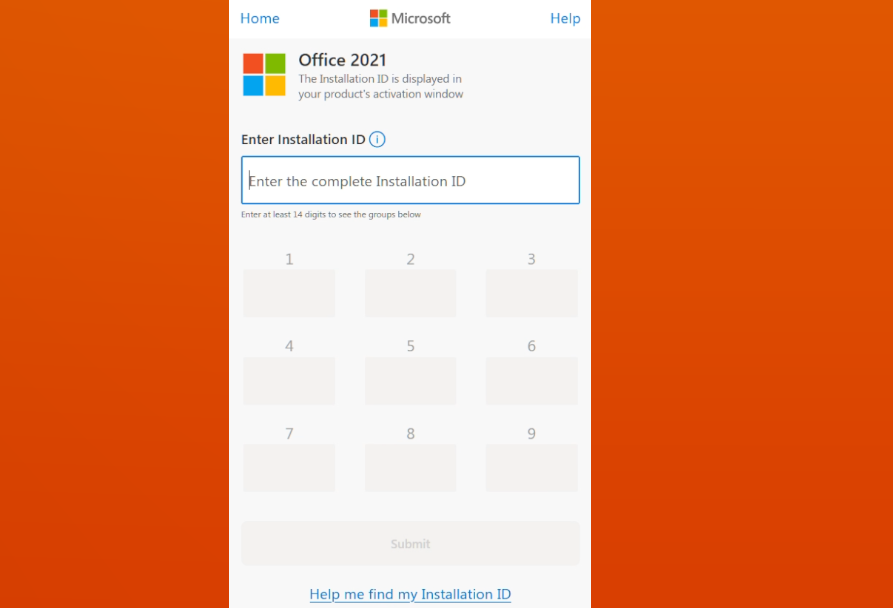
Then below you will have the Installation ID, a long numeric code.
-
-
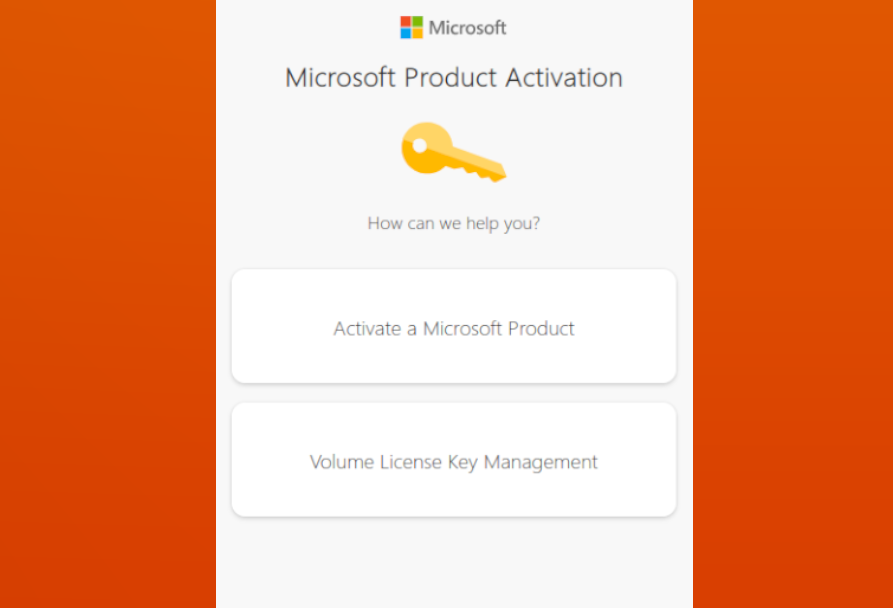
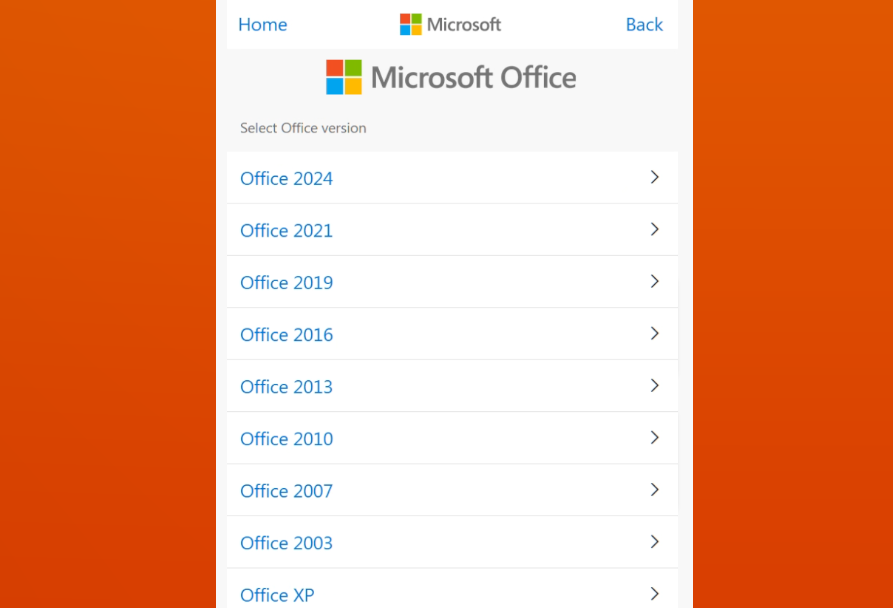
Sign in with a Microsoft account, enter the Installation ID and press Finish.
-
Then you will receive a Confirmation ID, which must be copied very quickly into Notepad.
-
Enter the Confirmation ID in the activation window and press Finish.